
Testing (Sandbox)
Sandbox is a testing tool in Event Management that lets you verify your SEM implementation is working correctly before going live – without affecting real data.
Once you start a test, Sandbox redirects you to your website and begins capturing SEM events sent during that session. You can then simulate individual actions on the site – viewing a product, adding to cart, completing an order – and see in real time whether events are being sent correctly and contain the expected parameters.
Test data will not affect your account
Events captured during a Sandbox test are not counted toward your real Sklik account data. They will not skew your conversions, retargeting audiences, or campaign statistics.
How to run a test
1. Open Sandbox in Event Management
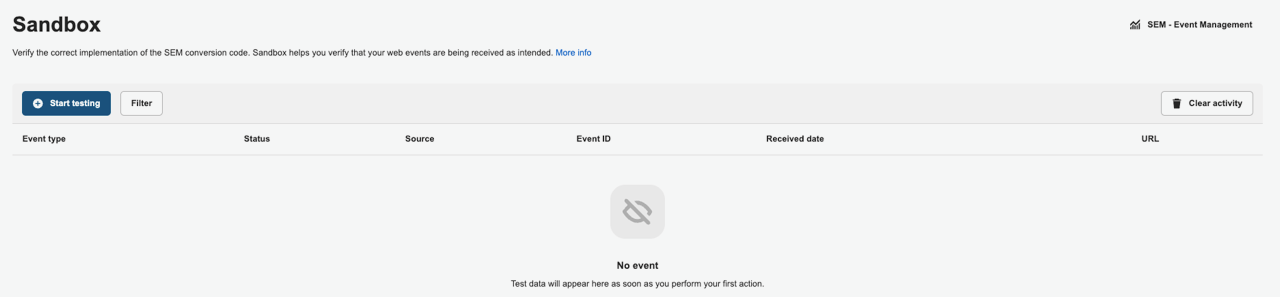
You can access the Sandbox via the ‘Measurement Management’ page by clicking the Sandbox button in the top right corner of the page.
2. Add a test source
If there is no eshop in the account, it is not necessary to select a testing source in the Sandbox interface.
If a Shop already exists in the account, it is automatically selected as a testing source (even if the advertiser does not use its SEM ID). The testing source is always displayed in the select box in the top left corner of the page, where you can switch between testing individual branches.
3. Start the test and simulate events
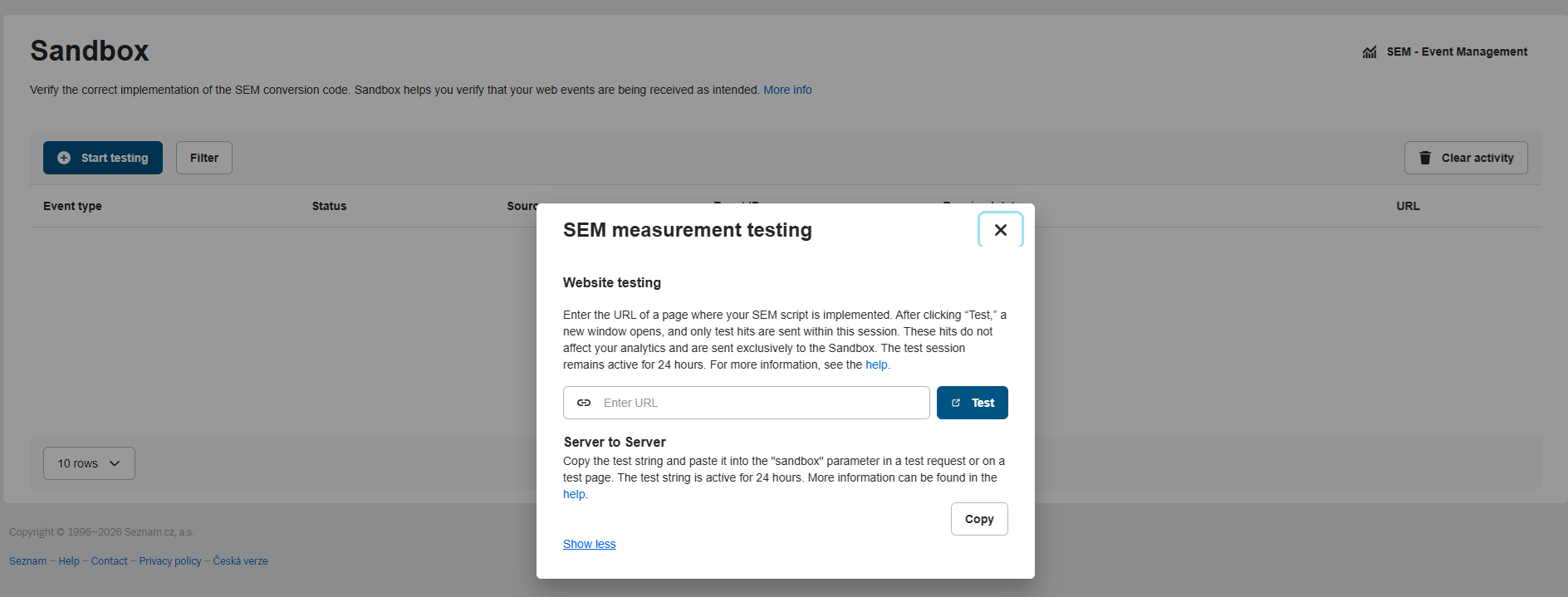
To start testing, click the ‘Test’ button. A modal window will open, allowing you to choose between Web testing and S2S testing. The choice of testing type depends on your SEM measurement implementation.”
Web interface
Select this option if you are using one of the following implementations:
- Basic SEM script directly on the website
- GTM template
- E-commerce platform
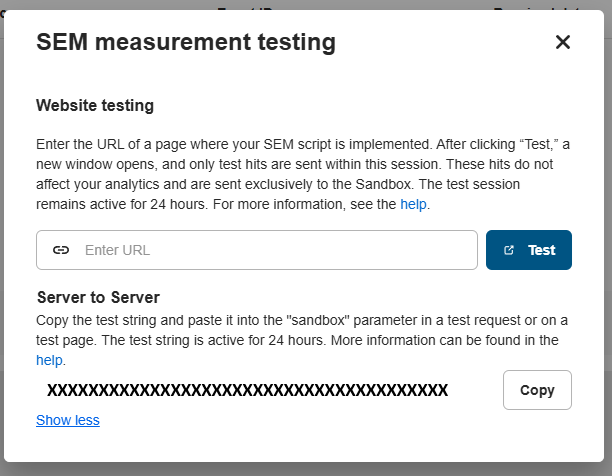
In the modal window, use the Web Testing section, where you must enter the target URL of the e-shop or website where the SEM script is deployed. This script must be sending SEM hits for the selected branch or account.
After clicking the ‘Test‘ button, a new window will open with the loaded website. In this session, only test hits will be sent.
Server to Server:
If you use Server-to-Server measurement, select the ‘I want to test Server-to-Server‘ option in the modal window.
You must copy the test token (string) associated with the selected branch and account. This string then needs to be inserted into the test request or onto the test page in the ‘sandbox’ parameter. The data type is string.
4. Review the captured events
In the Sandbox table, you will see the event type, its status (Processed / Error), and the source URL. By clicking on a row, you can view detailed event parameters and verify if they match the expected values. You can also filter the results above the table
Test session is active for 24 hours
The test session expires automatically 24 hours after it starts. Once the test ends, events are sent normally to live measurement again.